



About Installation Folder, Projects, and Acquisition Folders:
To download the Software Installation .zip folder, go to the Software download zone (https://www.phylumtech.com/home/en/support/), right-click the link, and choose “save link as” to download the file.
Once you download the .zip file, you will need to manually unzip the files inside. You will find the following files:
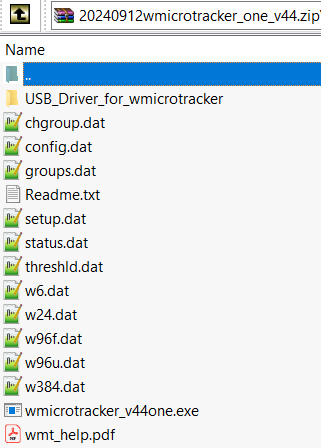
Please move these files into a new folder.We recommend creating a new folder named C:\wmicrotracker\ and copying the files inside. (Avoid copying the folder to the desktop or my documents, or into a folder with a very long name.)
In this sense, the file you will have inside the folder after installation will be:
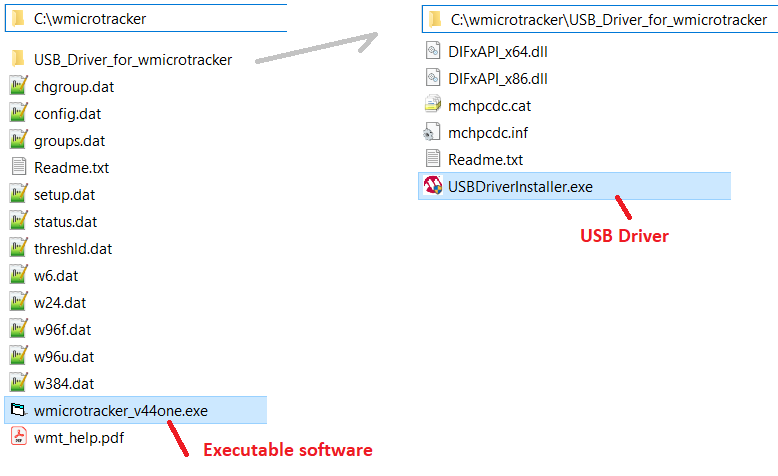
The “wmicrotracker_v44one.exe” is the software itself (v44 refers to the current software version) , and “USB_Driver_for_WMicrotracker” is the folder where the communication executable Driver is located. You will need to install the USB Driver previous to connect the equipment.
For easy access to the program, it is a good practice to create a shortcut on the desktop pointing to your installed executable file. To do this, right-click on the executable (wmicrotracker_v##.exe) and choose 'create a shortcut'.
Structure of folders [“under the hood”]:
The first time you connect the equipment and open the software, the software will attempt to download factory settings located in the WMICROTRACKER device memory. These files contain important factory settings specific to your SERIAL NUMBER device and are pre-saved to avoid the need for in-house calibration.
Once you start acquiring experiments, you will notice that projects are created in the installation directory (using the project number as index, ex. P00001, P00002, etc). Inside each project, you will find acquisition files sorted by date. All raw data and reports are saved into these acquisition folders.
Example of data structure:
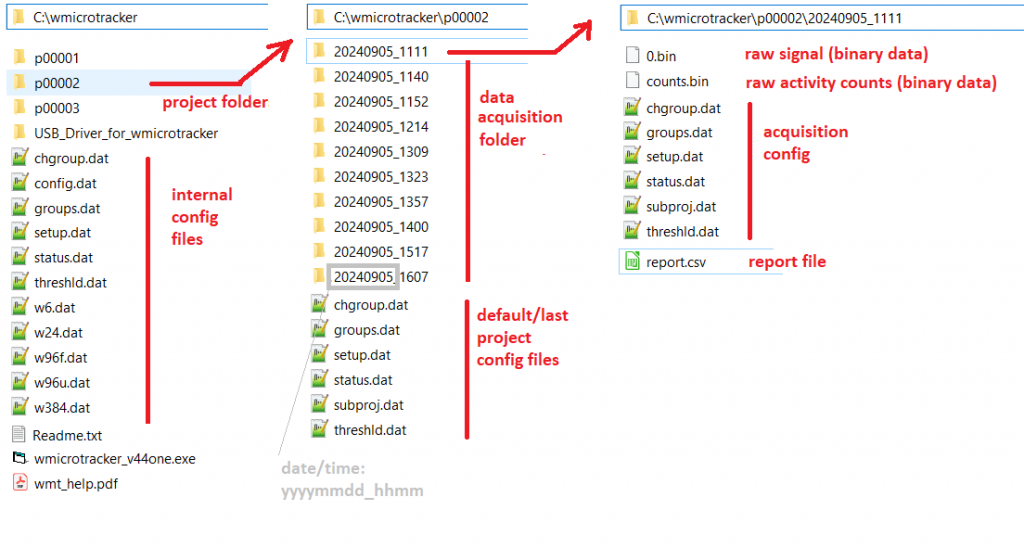
If you wish to access the folder through a network, you should share this folder with your workgroup. If you want to transfer the experiments to another computer for analysis, you should copy the project or acquisition folder. Try to keep the name simple without spaces to ensure it can be loaded. Project folders need to have the name “pX####” where X is a character and # is a number… to be accessible by the software. Acquisition folders need to have the name yyyymmdd_hhmm to be accessible by the software. Please remember to maintain the project.acquisition folder structure to allow the software to read and access the data.
Compresion of folders to share acquisitions:
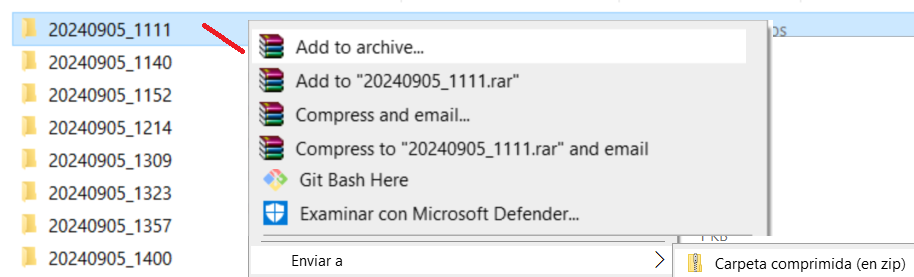
In order to share acquisitions with other user, you can send the compressed full folder. In order to do it, right click on the acquisition folder name and select add to .zip, .rar or send to compressed folder (.zip). You can cshhar ethe compressed file .zip later with your colleagues, as they will uncompress it into an existent project folder to reload your experiment offline.
To share acquisitions with other users, you can send the entire folder in compressed format. To do this, right-click on the acquisition folder and select “Add to .zip/.rar” or “Send to compressed (zipped) folder.”
You can then share the compressed (.zip) file with your colleagues. They can extract it into an existing project folder to reload your experiment offline
We recommend periodically checking the phylumtech.com website for software updates, or just send us an email to check if there is any important upgrade.
Known Troubleshooting Issues:
1) Device communication error in computers without english OS: There is a need to set non-unicode configuration to English please Check this article