




Creating a video from your image sequence allows you to restore the time dimension and present movement as it actually occurred. This is particularly useful when you want to highlight behavioral patterns, subtle motility changes, or treatment effects in a more intuitive way.
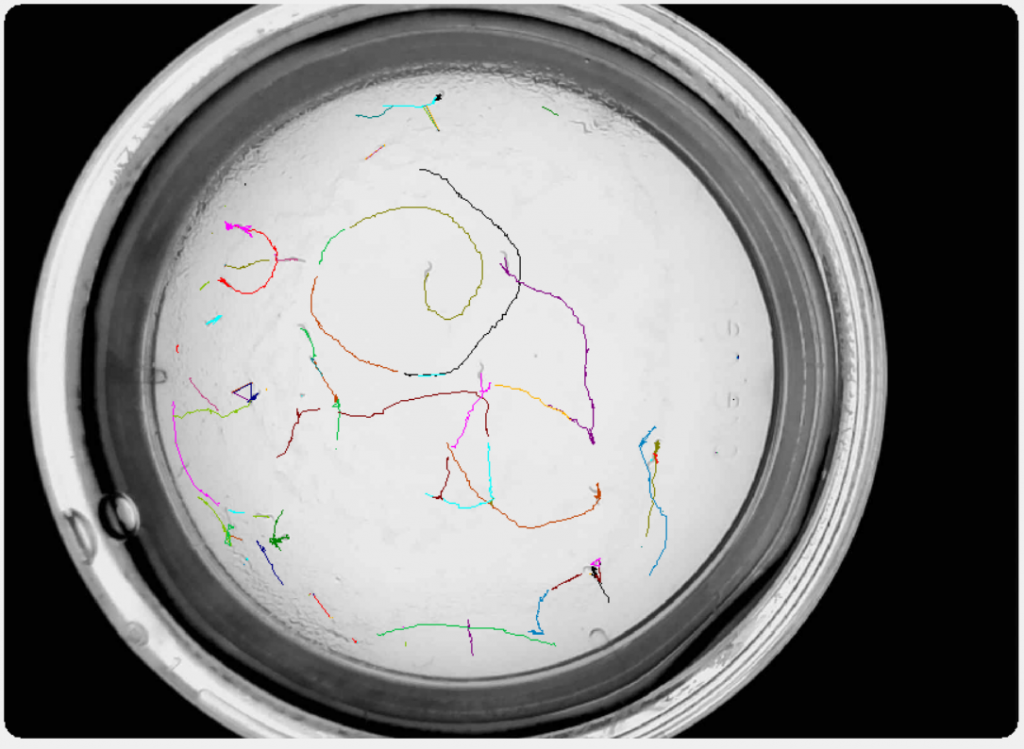
Creating a video in ImageJ
You can easily generate a video from your image sequence using ImageJ ().
Start by importing your sequence:
- Go to File → Import → Image Sequence…
- Select the folder containing your frames (search into your project folder\acquisition folder\img)
- Adjust sorting options if needed to maintain correct time order
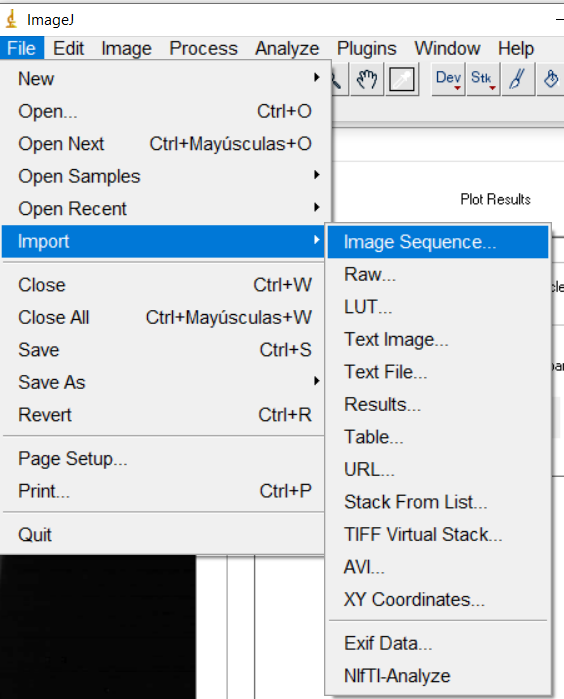
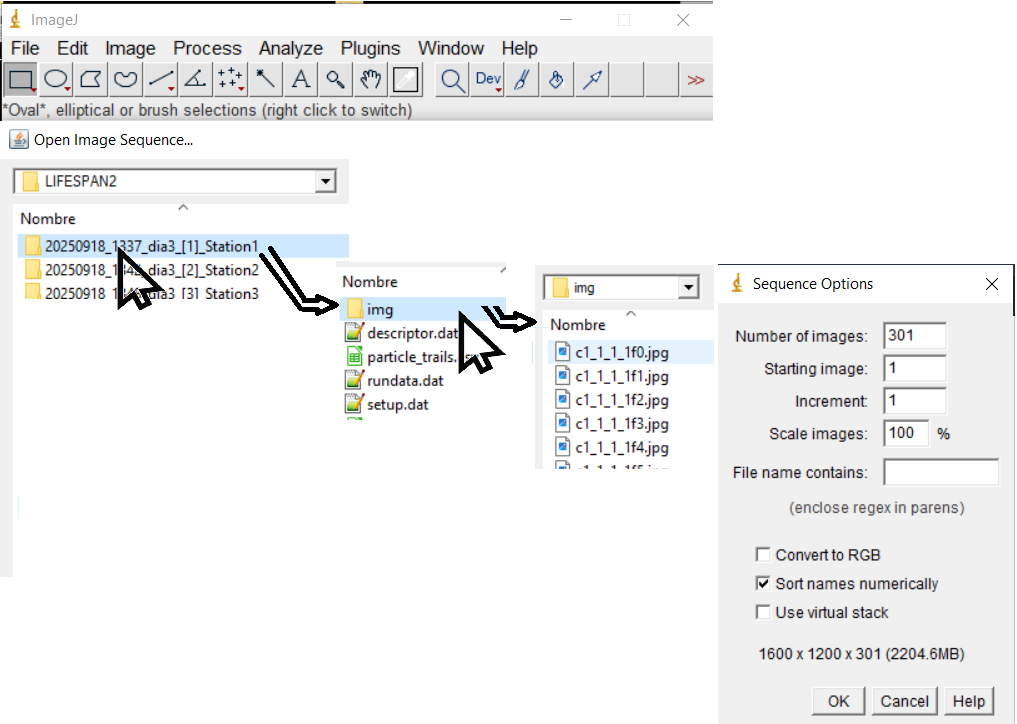
Once loaded, your sequence will appear as a stack where each slice corresponds to a frame in time.
Now convert the stack into a video:
- Go to File → Save As → AVI…
- Choose a compression format (or uncompressed for maximum quality)
- Set the desired frame rate (e.g., 5–10 fps for slow movements, higher for faster dynamics)
- Save the file
The result
Your output will be a continuous video showing worm movement across the plate:
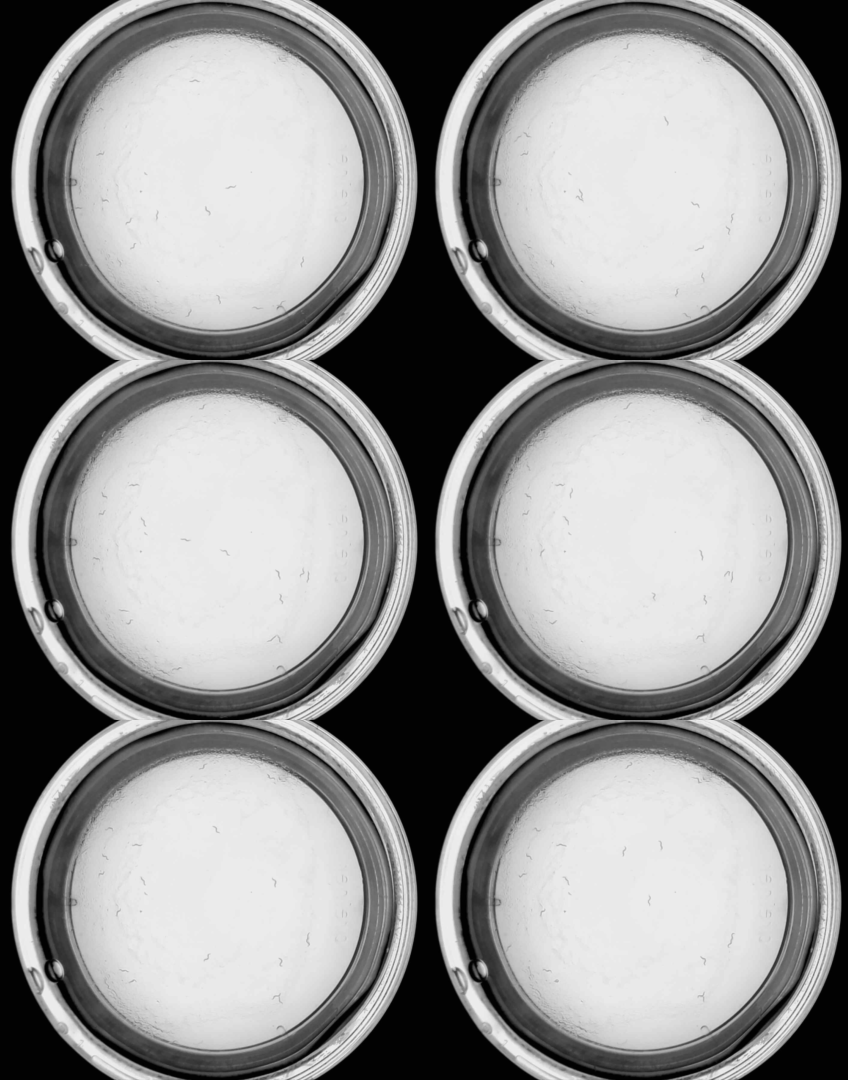
This dynamic representation complements static analyses and provides a more complete understanding of the behavior captured by WMicrotracker SMART.
Adding value to your data presentation
Videos are especially powerful when paired with quantitative results. For example, a motility decrease measured in a bar plot becomes much more compelling when the reader can directly observe the reduced movement in a corresponding video.
Including short clips as supplementary material—or even embedding them in presentations—can significantly enhance how your findings are perceived and understood.